
Gorilla Version Pin
Disable updates for one plugin, or for WordPress itself, without losing its security fixes. Pin it at the version you trust, add a note saying why, and let fixes in the same series keep coming.
The problem
Why disable updates for one plugin?
Some updates break sites. A plugin’s new version stops working with your theme, changes a checkout, or needs testing before it reaches a live store. Holding that one plugin back is sensible.
The usual way to do it blocks every future version, including security fixes. That is the trade-off every guide warns about. Gorilla Version Pin removes it.
Version numbers
What a version number tells you
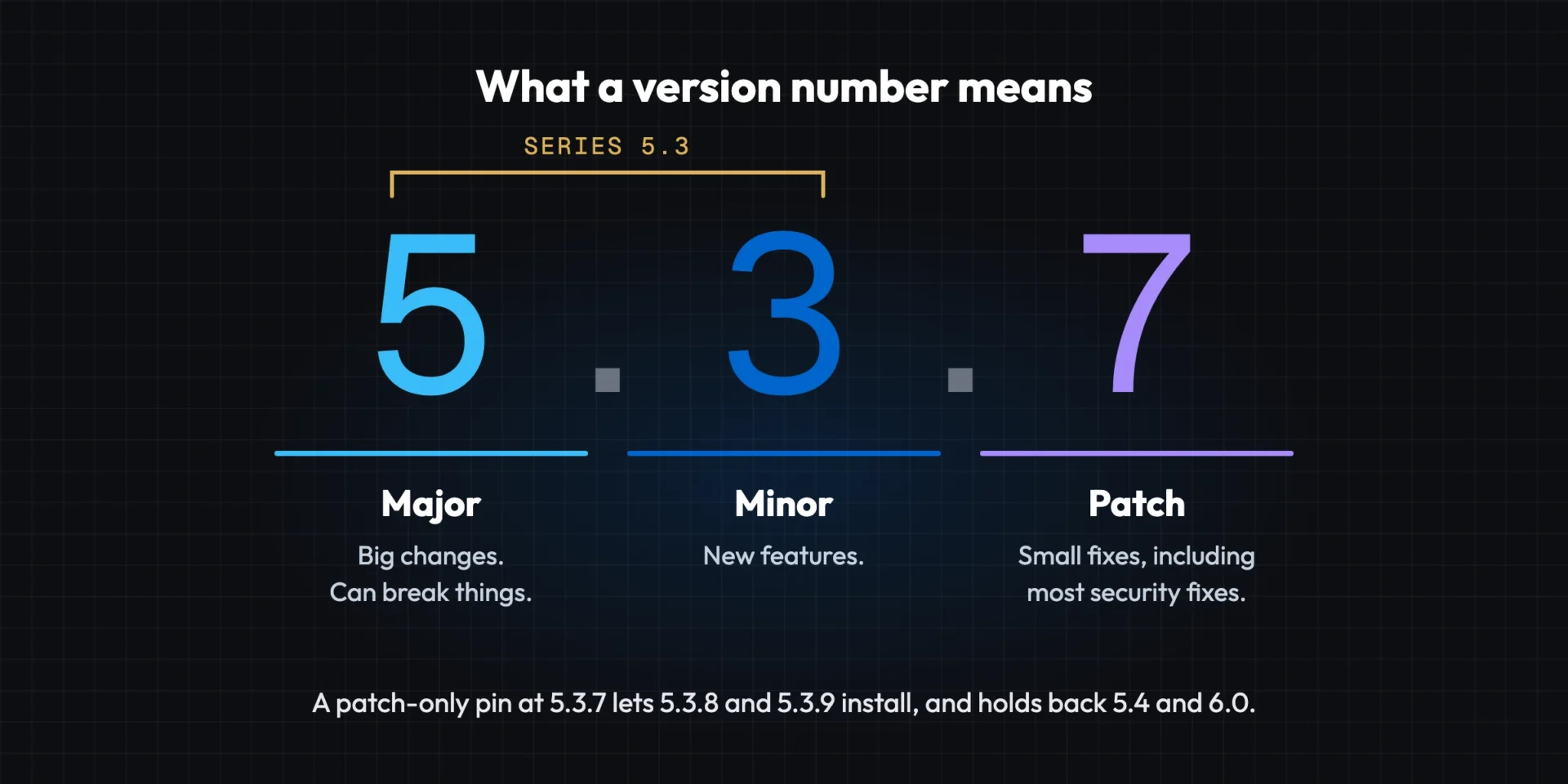
Most plugins number releases in three parts. The first number changes for big changes that can break things. The second changes when features are added. The last is for small fixes, including most security fixes. The first two numbers together are the series: 5.3.7 is in the 5.3 series.
Not every author follows this pattern, so glance at a plugin’s changelog before relying on it. WordPress itself works the same way: 7.1 is a major release, and 7.1.1 and 7.1.2 are its maintenance and security releases.
How it works
Two kinds of pin
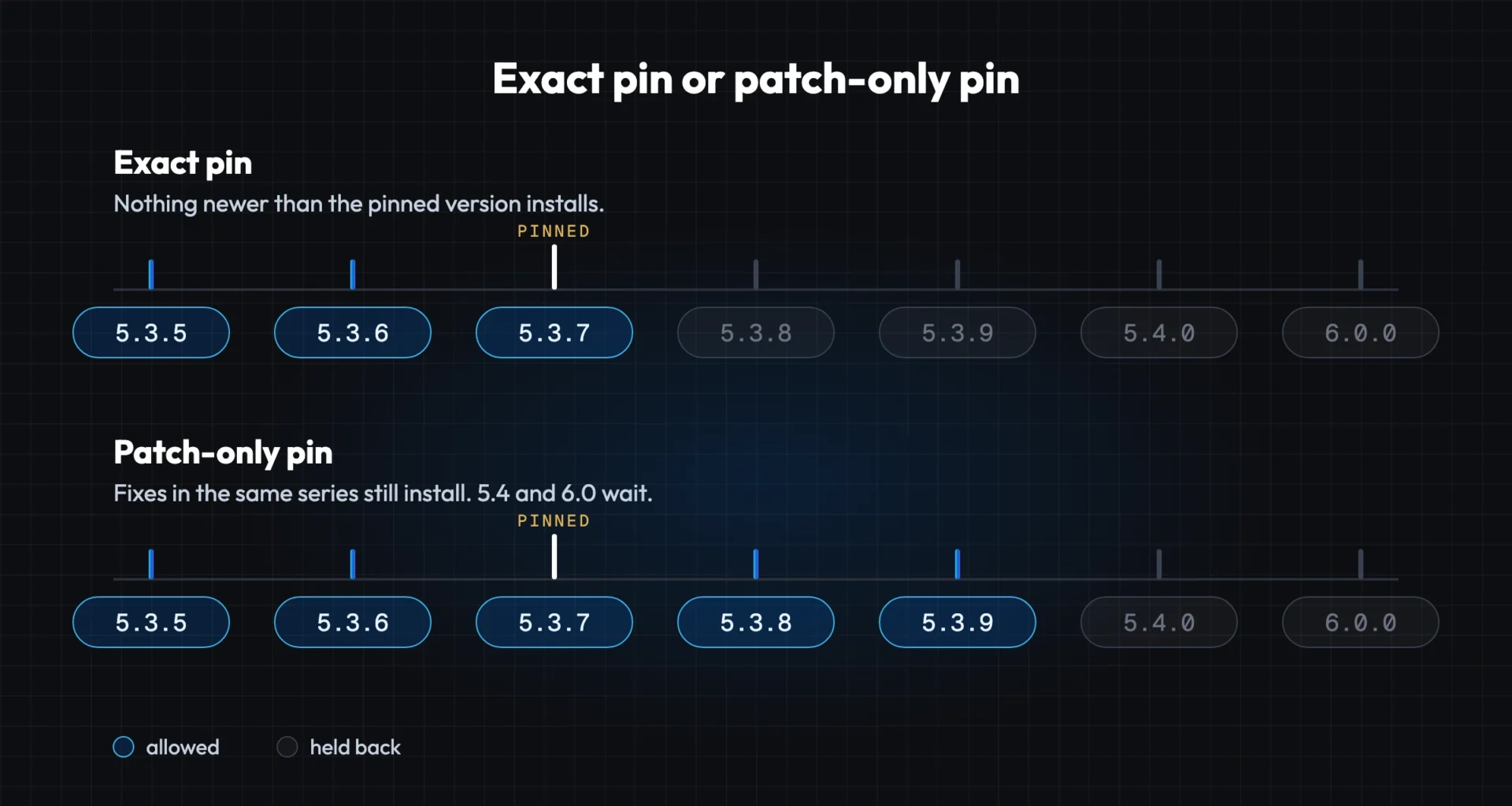
Exact pin. Nothing newer than the pinned version installs. Use it when a plugin must not change at all.
Patch-only pin. Releases in the same series still install, so security fixes keep coming. Pin at 5.3.7 and 5.3.8 arrives as a normal update, while 5.4 and 6.0 wait until you have tested them.
Every route
Every way of updating is covered
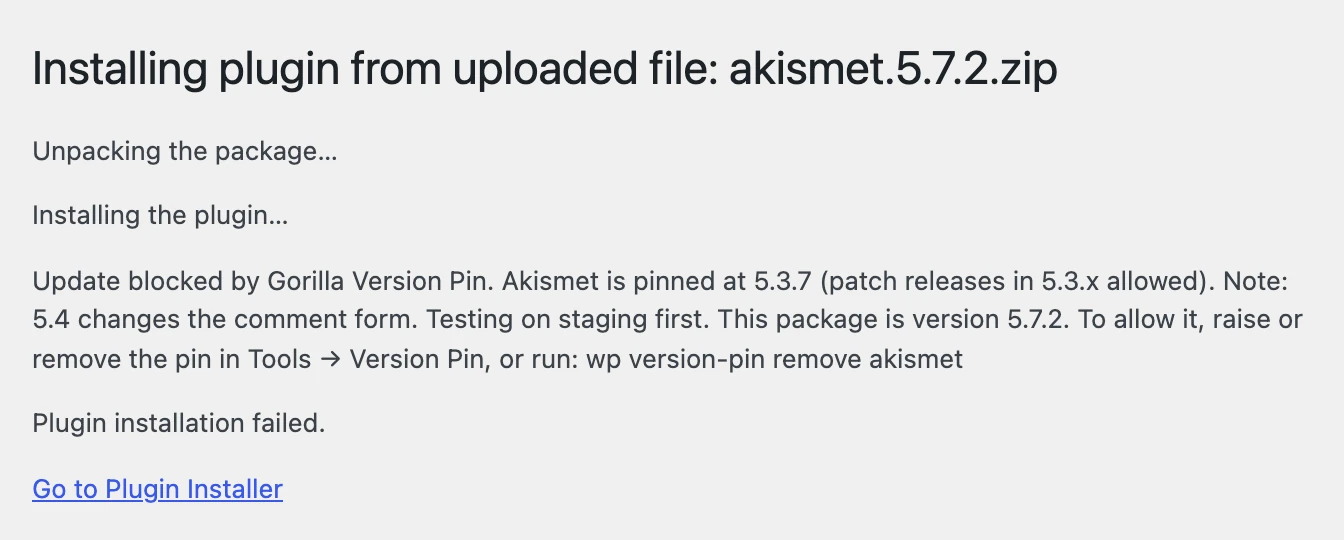
- The update is hidden from the Plugins screen and the Updates page.
- Automatic updates are refused for anything past the pin.
- Manual updates, ZIP uploads with “Replace current with uploaded”, reinstalls and
wp plugin updateare refused with a clear message: which pin stopped the update, why, and how to allow it.
Notes
Pins that explain themselves
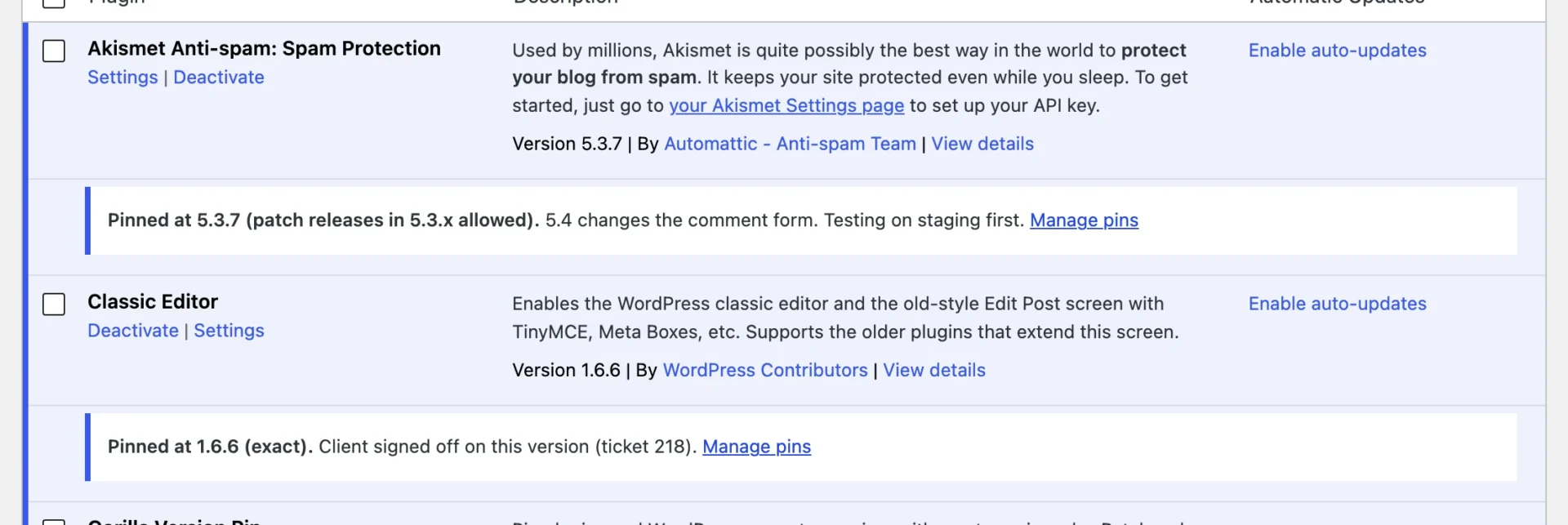
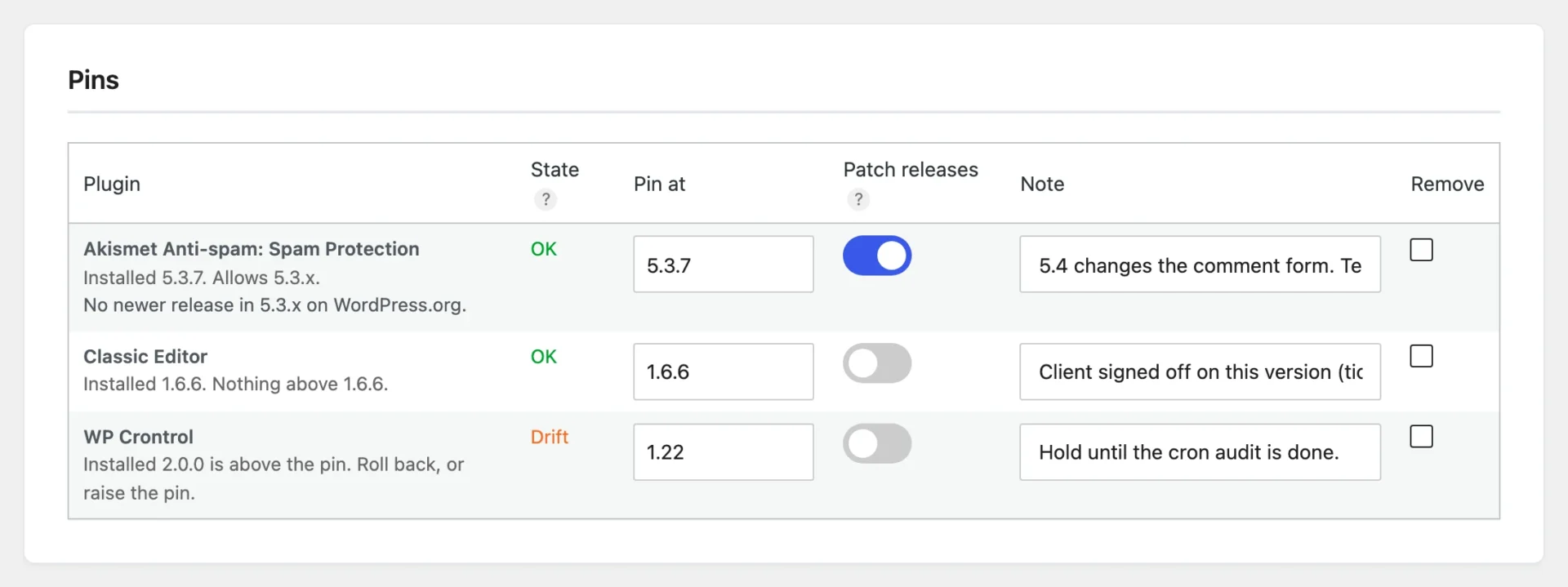
Add a note to each pin, such as “5.4 changes the comment form, testing on staging first”. The note appears on the Plugins screen and in the message anyone sees when an update is refused, so nobody has to guess why a plugin is held back.
The pins screen shows each pin’s state at a glance: OK, Drift when a plugin has been updated past its pin some other way, or Missing when the plugin is not installed.
Adding a pin
Pin a plugin in seconds
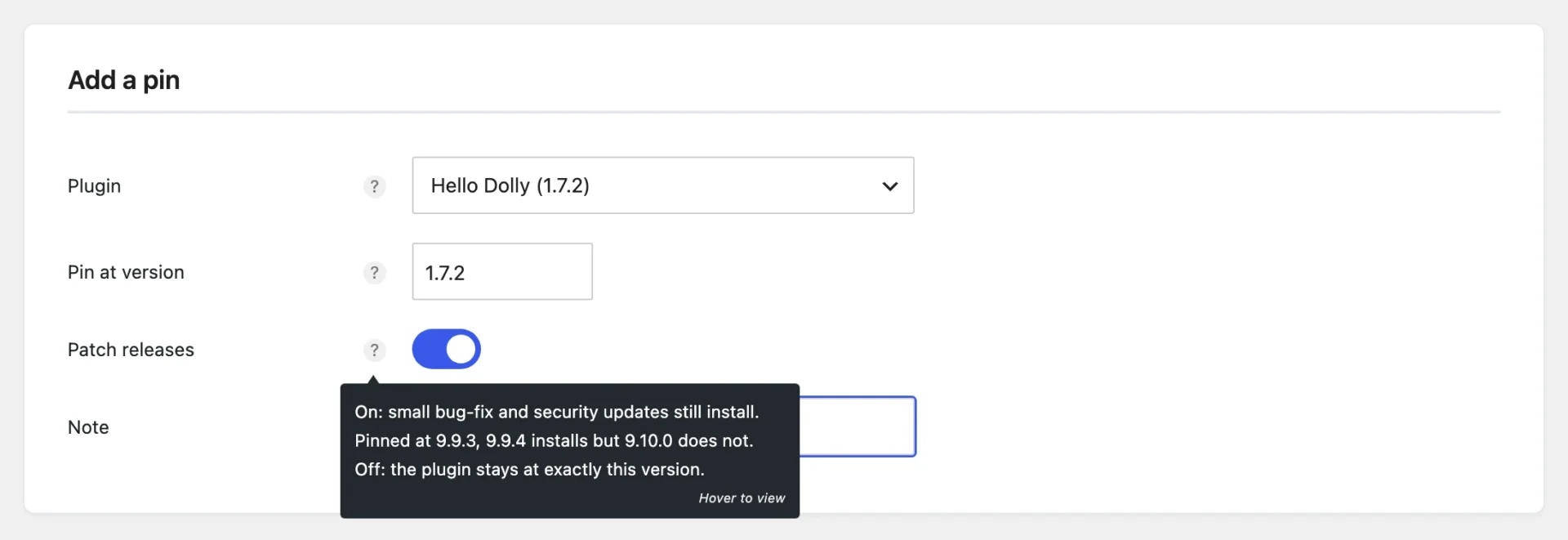
Choose a plugin, keep its installed version or type another, decide whether patch releases may install, and add a note. Every setting has a plain explanation next to it. If you pin below the version that is installed, the plugin tells you straight away: a pin never downgrades anything.
Also included
WordPress core pins
Hold WordPress itself at a version. With patch releases on, its security and maintenance releases still install.
Older-series fixes
Off by default. Switch it on and a patch-only pin can receive fixes released for your older series, for WordPress.org plugins.
WP-CLI
Three commands, list, add and remove, so agencies can manage pins on many sites from the command line.
Works with what you have
A note on its screen tells you when another update manager is active, so two plugins never fight over the same update.
Privacy and your data
Nothing sent anywhere
Only when you switch on “Find older-series fixes”. Then it asks WordPress.org for release lists, nothing else.
One row in your database
Your pins are stored in one row of your own site’s database. No account, no tracking, no cookies.
Gone when you delete it
Delete the plugin and its pins and cached release data are removed. Updates behave normally again.
A word of caution
An exact pin also stops security fixes for that plugin. Use patch-only pins where you can, keep a note on every pin, and review your pins regularly.
Frequently asked questions
Most plugins number releases in three parts. The first number (5) changes for big changes that can break things. The second (3) changes when features are added. The last (7) is for small fixes, including most security fixes. The first two numbers are the series: 5.3.7 is in the 5.3 series. A patch-only pin at 5.3.7 lets 5.3.8 and 5.3.9 install, and holds back 5.4 and 6.0.
Yes. That is why patch-only pins exist. If a security fix is released inside the pinned series, a patch-only pin lets it through. For plugins not hosted on WordPress.org, that happens when the vendor offers that release. If you need a fix from a newer series, raise or remove the pin.
wp plugin update on a pinned plugin fails with a message naming the pin. That is deliberate: a pin that the command line ignores is not a pin. Remove the pin first with wp version-pin remove <plugin>.
Gorilla Version Pin shows the pin as Drift, on its screen and on the Plugins screen, so you can roll back or raise the pin.
The pin still applies. If the version you are installing is outside the pin, the install is refused. Install the pinned version, or remove the pin first.
Yes, but two plugins that both control updates make it hard to see which one decided. Gorilla Version Pin shows a note on its screen when it finds another. Use one.
Not in version 1.0. On a multisite network it does nothing and says so on its screen. Multisite is planned.
While it is deactivated, pins do not apply; they apply again when you reactivate it. When you delete it, all pins are removed and updates behave normally again.
Not unless you switch on “Find older-series fixes”, which asks WordPress.org for the release list of patch-pinned plugins hosted there, and sends nothing else.
Requirements
- WordPress 6.4 or later
- PHP 7.4 or later
- Single-site installs (multisite is planned)
Support
Questions and bug reports go to the support forum on WordPress.org once the plugin is approved. Found a security issue? Please do not post it publicly; report it privately through our contact form.

Built by Gorilla DevOps
We look after WordPress sites for agencies and businesses, and we built Gorilla Version Pin because we needed it on the sites we maintain. If you would rather someone else kept your plugins and updates under control, our engineers can do it for you.
Ongoing Support & Maintenance